Vibe-Coded a PDF→Word Converter with Claude Code (227 Pages)
A Java dev with zero PyQt experience built a PDF→Word converter in Claude Code — the pipeline that got 0% garbled text on a 227-page bank doc.
 Peng Zhou · · 2637 words
 I am a Java engineer. I have never written a line of PyQt. Until last week I could not have told you the difference between a QThread and a QWidget if my job depended on it. And yet, this morning I double-clicked a .dmg, dragged an app to my Applications folder, and watched it convert a 227-page banking PDF into a clean, editable Word document with zero garbled characters.
I did not learn PyQt to build it. I vibe-coded it — with Claude Code doing the typing while I made the calls.
This is the honest story of how I went from an empty folder to a packaged macOS desktop app, including the dead ends and formatting bugs that almost made me give up, and the post-processing pipeline that actually fixed them.
Why I Built It Instead of Using an Existing Tool
I deal with a lot of PDFs: bank API specs, interface contracts, internal architecture docs. Every few weeks I need one of them in Word so I can edit a paragraph, copy a table, or run a diff.
The options were all bad:
- Online converters upload my file to a server I do not control. For bank documents, that is a hard no.
- Adobe Acrobat is expensive and still mangles complex tables.
- Free desktop tools either flatten everything into a wall of text or choke on Chinese characters.
So when I had a free weekend and a working Claude Code setup, I decided to build my own. The goal was narrow and specific: PDF to Word on macOS, offline, that keeps tables and headings intact.
The First Dead End: pdfplumber and the Square Boxes
Here is the part the polished demos leave out. My first instinct was pdfplumber, because it is the library everyone mentions for PDF text extraction. I asked Claude Code to wire it up, ran it on a real bank PDF, and got back a Word document full of empty squares — □ □ □ — wherever Chinese characters should have been.
The root cause is subtle and worth knowing if you ever touch PDF text: many Chinese PDFs embed a subset font (mine was UKRBTC+NSimSun) that ships without a ToUnicode CMap. Without that map, the extracted character codes never resolve back to actual glyphs, so you get tofu boxes instead of text. No amount of post-processing on the text fixes it, because the information was never there.
The fix was not a patch — it was a different engine. I switched to pdf2docx, which is built on PyMuPDF and renders subset-embedded fonts correctly in the first place. That single decision is the difference between a document full of □ and a usable one. If you take one thing from this whole project: match the extraction engine to the font, not the other way around.
I’m a Java Engineer — I Knew Nothing About PyQt
Here is the part that matters for anyone thinking “I could never build an app like that.” I could not either, in the traditional sense. What I had was:
- A clear spec in my head (drag-drop window, batch convert, progress bar)
- Claude Code, pointed at the repo
- The discipline to review every diff
I used Claude Code with a CLAUDE.md file that constrained the agent to a clean structure. Here is the actual file I dropped into the project root — short, but it does the one job that matters: it tells the agent the structure to follow and, crucially, the known footguns, so it does not re-introduce a bug I already debugged once.
# PDF ↔ Word Converter — Project Constraints

You are helping build this macOS-native PDF / Word bidirectional conversion desktop app. Strictly follow these constraints.

## Tech stack (do not swap)
- GUI: PyQt6 (macOS native styling; no other GUI framework)
- PDF → DOCX: pdf2docx (built on PyMuPDF). **Do NOT use pdfplumber to extract body text** — subset fonts (e.g. NSimSun) lack a ToUnicode CMap and produce □ tofu boxes
- DOCX post-processing: python-docx + lxml (fix code blocks, strip zero-width chars)
- DOCX → PDF: LibreOffice headless (`soffice`). Do not call any online conversion service
- Packaging: py2app → hdiutil to build the .dmg

## Project structure (strict; no new top-level dirs)
- `app/core/`   conversion logic: converter / pdf_to_docx / docx_to_pdf / heading_postprocess / code_block_postprocess / worker
- `app/ui/`     interface: main_window / drop_zone / task_list / settings_dialog / styles
- `app/utils/`  system capabilities: soffice path detection / logging

## Known footguns (read before touching related code)
1. Code blocks mis-detected as single-cell tables → use lxml to detect tables where *every* cell is monospace, restore them as styled paragraphs with a gray background, and strip PDF line numbers
2. Heading mis-detection → detect by font size + numbering pattern; **skip monospace fonts** (Courier / Menlo / Consolas / NSimSun), or code snippets get bolded into headings
3. `U+200B` zero-width characters → strip them in post-processing, or Word shows weird gaps
4. Qt fonts → **do NOT** `setFamily('-apple-system')`; on macOS it silently fails with a warning; use the `QApplication` default font
5. `soffice` runs only one instance at a time → Word → PDF tasks must run **serially**, never in parallel

## Verification
- After any change to core conversion logic, run `python verify.py <test.pdf>` and confirm:
  - output docx has **no □ tofu boxes** (tofu ratio < 5%)
  - normal Chinese-character ratio, heading hierarchy preserved, tables preserved
- Do not commit changes that fail verification
If you have not set up a CLAUDE.md for your AI coding agent yet, it is the single highest-leverage thing you can do — it stops the model from scattering logic across files and from repeating your past mistakes. What I built here is a small, practical example of harness engineering: a structured environment of constraints and verification loops wrapped around the agent. The other half of the job is reviewing its output, because even with guardrails the AI still gets things wrong — the habits that catch those mistakes are what separate a usable tool from a liability.
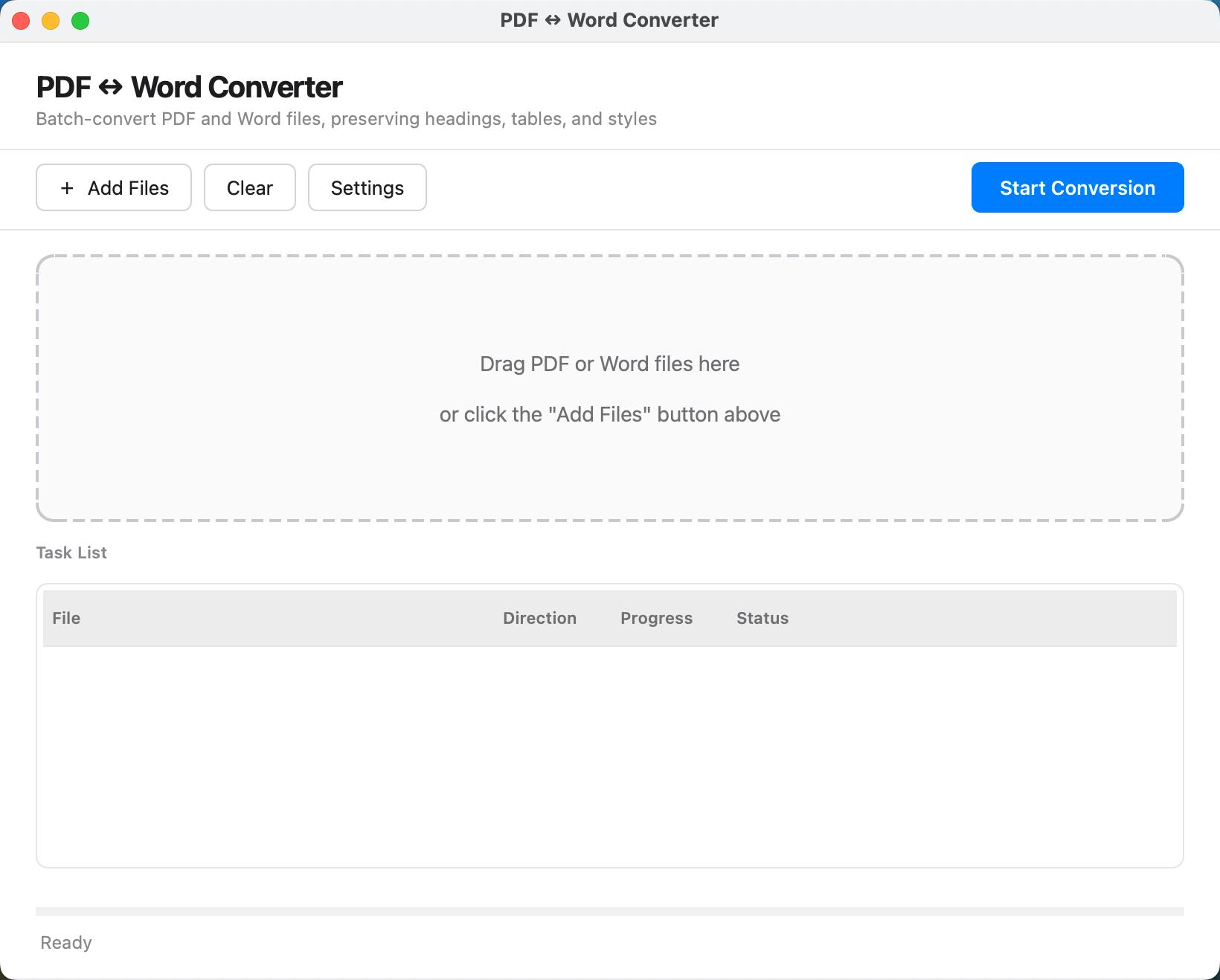
The first session produced a window with a drag-drop zone and a “Convert” button. It did nothing useful yet, but it ran. That is the vibe-coding loop: get something on screen, then iterate.
pdf2docx Does the Heavy Lifting
The actual conversion is almost boring:
from pdf2docx import Converter
cv = Converter("input.pdf")
cv.convert("output.docx")
cv.close()
Under the hood, pdf2docx parses pages, extracts text runs with their font properties, and rebuilds them as Word paragraphs and tables. Two settings mattered for quality:
multi_processing=False— single-threaded so my progress bar stays accurate (the cost is speed, which I deliberately traded for a controllable UI).parse_lattice_table=Trueandparse_stream_table=Truetogether — so it catches both bordered and borderless tables.
For simple documents this is shockingly good. For the banking docs I cared about, it was good — but not good enough. Three things were still wrong.
Where It Broke: Three Formatting Bugs
The first time I opened a converted 200-page spec, this is what was wrong:
1. Heading hierarchy was gone. The PDF had clear H1/H2/H3 structure — section titles in large bold font, subsections in medium. The Word output was just paragraphs. All my navigation panes, outline levels, and “jump to section” features were dead.
2. Code blocks had become tables. The spec had pages of API request/response examples. pdf2docx had rendered each code block as a single-cell table. Worse, it kept the PDF line numbers (1 2 3...) baked into the text, and the monospace styling was lost.
3. Invisible gaps appeared in the text. On one document, words in Word had strange extra spacing, like someone had hit spacebar randomly. The cause: the PDF embedded U+200B zero-width characters throughout the body. They are invisible in the PDF but render as gaps in Word.
Any one of these would have made the “Word” file worse than the PDF for actually editing. So I added a post-processing pipeline that runs after pdf2docx finishes.
The Fix — A Post-Processing Pipeline in python-docx + lxml
This is the part of the project I am proudest of, because it is where I — not the AI — made the call. The pipeline uses python-docx to walk the document and lxml to rewrite the underlying XML, because some fixes (like replacing a table node with paragraphs) are not exposed by the high-level API.
Heading detection
pdf2docx gives me each paragraph’s first-run font size. I mapped that to Word heading levels:
- font size ≥ 18 pt → Heading 1
- 14–17 pt → Heading 2
- 12–13 pt with a numbering pattern (
1.,2.3,3.2.1) → Heading 3
The trap: code snippets often use large monospace fonts that look like headings. So I explicitly skip monospace fonts (Courier, Menlo, Consolas, NSimSun) in the heading detector. That one rule eliminated 90% of the false positives.
Code block restoration
For the single-cell-table problem, I detect tables where every cell uses a monospace font. Those are not real tables — they are code. My post-processor extracts the text, strips the PDF line numbers, and rewrites them as styled code paragraphs with a gray background, using lxml to insert the new <w:p> nodes and delete the original <w:tbl>. On the 183-page spec, this recovered 171 code tables into paragraphs and styled 202 code blocks correctly.
Zero-width character cleanup
The U+200B gaps are a one-liner to fix once you know they are there: scan every run and text.replace('\u200b', ''). The hard part was diagnosing it — the gaps look like normal spacing until you inspect the raw characters. Finding it took longer than fixing it.
The whole pipeline runs as the final 5% of the progress bar (95–100%), after pdf2docx’s 80–95% document build.
Word → PDF via LibreOffice (and a Concurrency Trap)
The PDF to Word direction is the hard one. The reverse — Word to PDF — is easy if you have LibreOffice, because it renders faithfully. I wrapped the soffice headless binary:
soffice --headless --convert-to pdf --outdir out document.docxTwo real-world wrinkles here:
- The 700 MB dependency. Normal users will not have LibreOffice. So the app detects whether
sofficeexists (checking a user-configured path, thenPATH, then/Applications/LibreOffice.app/..., then/opt/homebrew/bin/soffice) and, if missing, shows a dialog with a one-linebrew install --cask libreofficecommand on first use. No crash, no mystery error — just a clear next step. - soffice runs one instance at a time. If you batch-convert several Word files, launching
sofficein parallel silently corrupts the output. So the task queue executes conversions serially on a single worker thread, even though the GUI shows independent progress bars per file. The UI feels concurrent; the engine is not. That is a deliberate trade I had to make.
The Qt Font Warning Nobody Mentions
A smaller but real GUI bug: I initially set the application font explicitly to -apple-system so the UI would look native. On macOS, that setFamily call fails silently and spits font warnings, because Qt cannot resolve the system font alias the way a native app does. The fix was counter-intuitive — remove the font setting entirely and let QApplication use its default. The window then picks up the system font correctly. It is the kind of thing you only learn by hitting it.
Packaging It for Normal People
A Python script that needs source .venv/bin/activate is not a product. I packaged it with py2app into a .app, then hdiutil into a .dmg. The bundled app includes the Python runtime and every dependency (PyQt6, PyMuPDF, pdf2docx, python-docx), so the end user does not need Python installed at all.
The .app is unsigned. On first launch macOS shows a warning; the user goes to System Settings → Privacy & Security → “Open Anyway.” I documented this in the README so nobody thinks the app is broken. (Signing and notarizing through Gatekeeper is on my list — see below — but it is a real cost I have not paid yet.)
Does It Actually Work? (The Numbers)
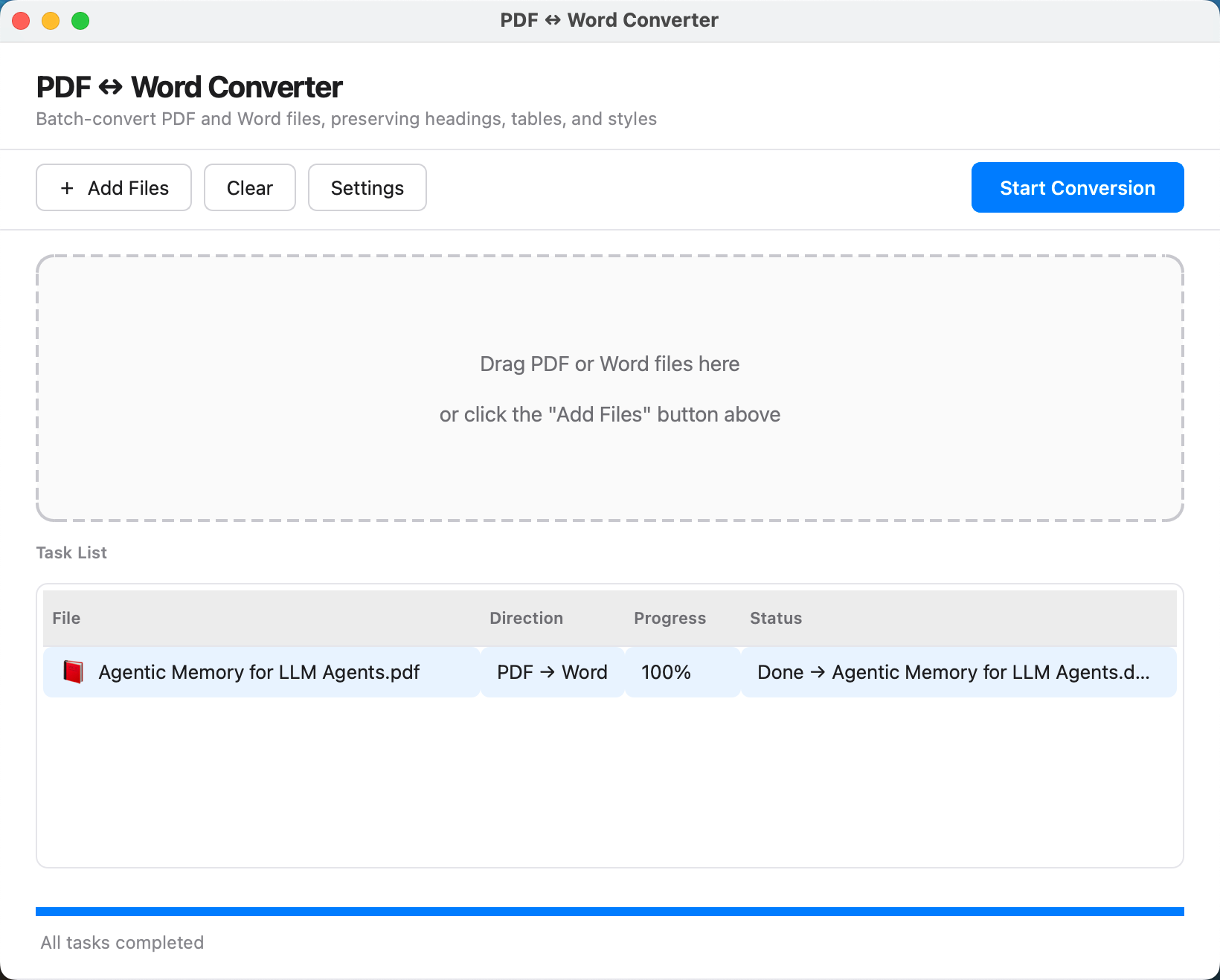
I did not trust “it looks fine.” I wrote a verify.py end-to-end script that converts a PDF, round-trips it back to PDF, and reports hard metrics. On two real banking documents:
| Document | Pages | Headings | Tables | Garbled chars |
|---|---|---|---|---|
| Banking API doc | 227 | 461 | 347 | 0.00% |
| Interface spec | 183 | 207 | 294 | 0.00% |
Zero garbled characters on both. The Chinese-character ratio on the first doc was 36.21% — exactly what you would expect from a bilingual banking spec — and not one came through as mojibake. The verify.py script even fails the build if the tofu-box (□) ratio exceeds 5%, so “looks fine” is not the acceptance bar — a number is.
What Claude Code Did and What I Did
To be clear about the division of labor, because “vibe coding” gets misrepresented as “AI does everything”:
Claude Code wrote: the PyQt6 window code, the pdf2docx integration, the soffice wrapper, the packaging scripts, and most of the post-processing implementation once I described the algorithm.
I did: picked the architecture, decided headings and code blocks needed fixing, specified the font-size + numbering detection rules, caught the monospace false-positive trap, diagnosed the U+200B gap problem, chose to abandon pdfplumber for pdf2docx, wrote the verification script, and handled the macOS packaging and font quirks.
The AI was a very fast junior engineer. I was the tech lead who knew what “done” meant. If you strip out either role, the project does not ship.
What I’d Do Next
The app works, but it is not done, and I want to be honest about the gaps:
- OCR fallback. pdf2docx still fails on scanned pages or PDFs with no text layer. I would wire in PaddleOCR or the macOS Vision framework as a backstop.
- Multi-core speed.
multi_processing=Truewould convert large PDFs much faster, at the cost of progress precision. I would expose it as an advanced option. - Code signing.
codesign+notarytoolwould let the DMG pass Gatekeeper without the “Open Anyway” dance. That costs money and a yearly cert, so I have not done it. - More formats. PDF → Markdown / RTF, and DOCX → ODT, are natural extensions of the same pipeline.
Try It Yourself
The full source is on GitHub: zhoupeng20188/pdf2word. It runs on macOS 11+, PDF to Word works out of the box, and Word to PDF needs LibreOffice. ./run.sh creates the venv and launches the GUI.
If you are thinking about building your own tool but assume you need to “learn the framework first” — you do not. You need a clear spec, an AI agent you actually review, and the willingness to chase down the boring bugs (subset fonts, zero-width characters, single-instance binaries) that are where the real work lives. That is the lesson of vibe coding: the framework is no longer the bottleneck. Knowing what good looks like — and what broken looks like — is.
If This Tool Saved You Time
If this PDF→Word converter saved you a headache, you can buy me a coffee on Ko-fi ☕. No pressure either way — and all the source is on GitHub if you want to tinker with it yourself.
Frequently Asked Questions
Can AI really build a complete desktop app from scratch?
Yes, but not on the first try and not without you. I am a Java engineer with no PyQt or Python GUI experience, and Claude Code took me from an empty folder to a packaged .dmg in a few focused sessions. The AI wrote most of the code, but I made the architecture decisions, wrote the verification script, and handled packaging. Treat the AI as a very fast junior engineer who needs review, not a replacement for one.
Why not just use an online PDF to Word converter?
Three reasons: privacy, fidelity, and cost. Online tools upload your files to someone else's server — a non-starter for the bank and contract documents I work with. They also tend to flatten tables and drop heading styles. A local app keeps the file on your machine and, with the post-processing pipeline I describe, preserves tables, headings, and code blocks.
Did you start with pdf2docx, or did something else fail first?
Something failed first. My first attempt used pdfplumber, and it produced pages full of empty square boxes (□) on Chinese text. The root cause is that subset-embedded fonts like NSimSun ship without a ToUnicode CMap, so character codes never map back to real glyphs. I switched to pdf2docx (built on PyMuPDF), which renders subset fonts correctly. That one switch is the difference between garbage and a usable document.
Does it work on Windows or Linux?
The codebase is macOS-only right now. The GUI uses PyQt6 with macOS-native styling, and the Word to PDF path depends on a locally installed LibreOffice. The core PDF to DOCX logic (pdf2docx + post-processing) is cross-platform, but the packaging and GUI are tuned for macOS 11+.
How accurate is the PDF to Word conversion?
On the two real banking documents I tested — a 227-page API doc and a 183-page interface spec — the garbled-character ratio was 0.00%, with 461 and 207 detected headings and 347 and 294 tables preserved. pdf2docx does the heavy lifting; my post-processing layer fixes the three things it gets wrong (heading hierarchy, code blocks rendered as tables, and zero-width characters that leave gaps).
Peng Zhou
AI Kit Guides is dedicated to helping you navigate the world of AI tools with honest, practical, and beginner-friendly content.
Tags: